Showing posts with label design portfolio. Show all posts

Thursday, October 3, 2019

One day in the holidays..

It is Thursday of the first week of the holidays. Last week the students asked me if I was coming in to do classes in the holidays. To be honest, I laughed in their faces. 90% of them are not the most focussed bunnies during the normal lesson time and I live much further away from school than I used to, so the answer was quite a firm no.
I had a slight change of heart though, as I was planning on coming in to school on both Thursdays to do the Community coding course that has been running for the last 12 weeks. I told the students I would do classes on both Thursdays if they wanted. I'm too soft.

2 things came up as topics of conversation today. NZQA and penis drawings.

NZQA came up as a topic of conversation while I was helping the students put their work onto their portfolio websites.
I have been getting my students to put their project portfolios together using Google Sites for quite a while now. I have put a sheet on the front of their sketchbooks with a link to the student's site, so the drawings were still in the sketchbooks which are sent away in November and all they had to do was type in the link to the student websites to see all their notes and research.
Last year was the first year that I had made a bitly.com account so I could personalise the shortened url links to the websites.
This is when I realised that there was a problem. With an account on bit.ly, you can see how many clicks you get on the URLs that you make.

As you can see from this screenshot, there were no clicks on the links to last year's project portfolios.


This makes me REALLY MAD...... NZQA are all for "going digital" for the exams but can't get markers to click on links that are sent to them as evidence of project work?
Surely they have a computer in front of them to input marks as they are doing them so why can't they type in a VERY SIMPLE url to look at student's online work?
I went and had a chat with our SLT member who is the principals nominee. We decided that we would do a two pronged attack this year. The site and I am currently busy printing out the research that the students have done online to stick into their sketch books. I thought I was over doing this nonsense!
Here are the girls who were in today cutting out stuff to put in their sketch books that is quite happily sitting on a Google Site that no one at NZQA will see. Ridiculous.


What with this and the moderation debacle over the last couple of years, NZQA is becoming a swear word in my head.

The second topic of conversation came up as the students asked me if the examiners looked at all the blank pages in the sketchbooks. I confirmed this as they regularly come back with the "nzqa assessed" stamp on all the blank pages too. This is to make sure that they don't miss any work hiding in the middle of the book.
I have this conversation with the class at the start of the year when I give the sketch books out. I ask THE BOYS not to draw anything (like penises) on any of the blank pages, as it will give the examiner a bit of a shock! I say the boys, as I have taught in two countries now and it is always the boys who feel the uncontrollable urge to draw penises everywhere they go! I tell them I have scrap paper at the front of the room of they are feeling the need to draw them. It gives them a laugh at the start of the course.
The girls offered to go through the books to check them (to save me doing it this year). So armed with a roll of white sticky labels, they checked through all the pages in all the sketch books.
They only found a couple which is not too bad. They have been covered over with white labels.
 Teenage Boys!!


Tuesday, October 30, 2018

External Submission Deadline

These last two days have been extremely busy. The pick up for my Design and Visual Communication NCEA Level 1, 2 and 3 is on Wednesday morning and all the work needed collating and bagging up. It is always a very stressful time as I always have to mark the last project as it is going into the bag!
I prepare the sketchbooks by sticking information on the front of it. There is an example here. I put a shortened link to their portfolio Google Site as this contains all of the research they have done for their projects. It is much smoother sending the research this way as I used to have to print it all and that was ridiculous.
I used Bitly this year because if you make an account, you can personalise the links instead of them being a random selection of letters and numbers.
An example is here:-

School - Tamaki College
No - 57


Level 1 DVC Project Links
Name - Kayle XXX
NSN - XXXXXXXX


Link to site
bit.ly/KayleLevel1


(Please ensure to type capitals and small letters when entering the url address)


I then lay out all the folders onto their plastic bags and make sure they are ticked off on the check list. The whole check list process was different this year so that meant reading the instruction booklet and underlining the important bits to make sure i was doing everything correctly.


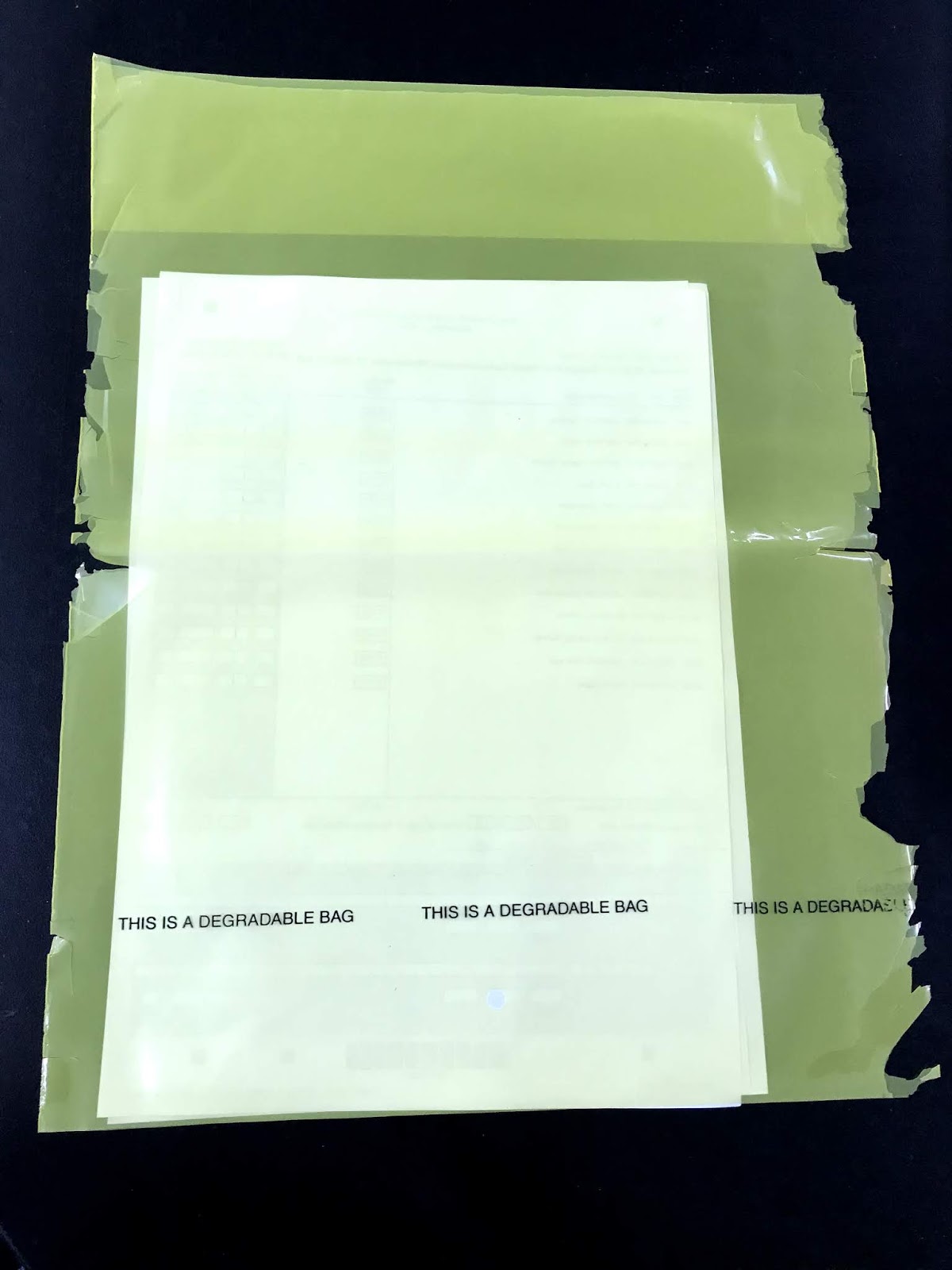
Another difference is that I don't have to email or fax the check lists through. They go into a bright yellow bag so it is easy to see in the posting bags with all the projects.
It had a sign on the bag saying that it was degradable. While I appreciate them starting to use degradable plastic, I think it should last for the life of the job it has to do. This is the state of it when it arrived!


Tuesday, September 26, 2017

Manaiakalani Google Class OnAir Lesson 14 - Design Portfolios

See the whole Class OnAir team here


Direct Instruction

The students are gathered round the front of the class room very briefly for instruction. They are to use the site template that they started at the beginning of the year to put all of their project work on.
Work that is online needs to be put into their subject folder and this whole folder made public. This will ensure everything embedded on their site from this folder will be able to be viewed by anyone.
The students are to ensure that their sketch book work has been scanned and uploaded to the class communities so that it is available to be included on their sites.
Anyone who does not have a portfolio site is to sort out time with the teacher in order for that to be sorted out as soon as possible.


This is the whole class chat about using the Google Sites that they made at the start of the year using a template supplied by the teacher.


This is the direct instruction to one Year 11 student who has not set up their Google Site yet.


This shows some of the students working on their portfolio sites and a couple of them talking about putting the site together.


Lesson Topic :- Portfolio Sites
Year Group :-  Year 11, 12 and 13
Learning Outcome
The students will have presented all of their up to date project work on their portfolio site (Google Site)

Success Criteria
Using SOLO


Uni
structural
Multi
structural
Relational
Extended abstract
Students will have identified all of their online work and will have filed it in the appropriate folder in their drive.
Students will have scanned their sketchbooks and will combine these scans with their online work in their folder.
Students will embed their online documents and their scanned designed work onto their Google Site in an order that makes sense so that the project flows and each part relates to the next in sequence.
Students will use their Google Site to present all of their project work together to create an online portfolio.
They will use presentation skills to create an online portfolio that shows them and their work in a good light.

Links with the New Zealand Curriculum
Level 1,2 and 3
The students put all of their project work over the year into a portfolio.
This used to be all on paper and posted to Wellington in November. It is now a combination of a portfolio site in the form of a Google Site and their sketch books with their original drawings in. The Google site has all of the online documents that the students have completed for their research. It also has scans and photographs of
The link to the online portfolio and their sketchbook are sent away together and the external components of the projects are marked.
  • Thinking - making sure they have everything sorted out ready to include on the site. Use the class site as a guide to know what they need to have.
  • Using language, symbols, and texts - visually presenting their work in the correct order on a Google Site.
  • Managing self - using the RISE values when doing this work on their own and staying on task.
  • Participating and contributing - helping others when stuck with how to put content on their site and with what understanding what work needs to go where.
  • Relating to others - responding to the ideas and help from others in a positive way.

Prior knowledge
Most of the students made their Google Site at the start of the year by using the template supplied by the teacher.
They have completed most of their project work ready to go onto the sites.
They have used Google Sites before and are aware of how to embed things onto the pages.
Lesson Sequence


Session Outline
The students will mostly be working at their own pace, online. They will be finding all of their work in their drive and adding it to their Google Site as an online portfolio.
Student Activity
Teacher Activity
  • The students will sit round the front table and listen together to the teacher outlining what to do and reminding them of what to put on their Google Site.
  • Remind students that we made Google Sites at the start of the year by using the supplied template made by the teacher.
  • Go over what needs to go where, what the headings and tables of contents on the pages mean and what they should be embedding.
  • Point out where online help is in the form of the portfolio help page on the class site - this is for when they forget how to embed items etc…
  • Scanning of drawn work in sketchbooks where needed.
  • Individual help and support where needed.
  • Help with students who don’t have a Google site yet.
  • Find all of their online work and make sure it is in the appropriate folder on their Google Drive.
  • Get their scanned work from the Google Plus Community.
  • Present all of their project work on their Google Site.
  • The students need to make the folder they have put their work into is public so that everything in it is public and able to be viewed by anyone viewing them on their site.
  • Make sure the Google Site is public.
  • Share the site on the class Google Plus Community
Resources

Google site templates
Scanner
Google Plus Communities Level 1, Level 2, Level 3
Next Steps
The students need to continue to add work to their portfolio site as they finish it to keep the sites up to date.
Reflection and Analysis

What went well.

Having the students find all of their online project work and make sure it is in their class folder was a good way of refreshing their memories on what they have completed over the project time.
They then had to make this folder public. This was very useful as it stops them having to remember to make each individual document public so that they are viewable when embedded on their sites.
Reminding the students at the start of this activity what to do was useful as although they all know how to “do” sites, it has been a while since we were last on them and it is not something they are doing every day, so they forget.

What still needs work.

There were students who started a little late into the year so had not made the portfolio site at the start of the year like the rest of the group. I had to sit with these students individually to go through what to do and how to do it.  It would have been better if
I had sat with them when they first joined the class, so they were ready to go with the sites when the work was done and ready.
I need to get the students to keep their sites up to date as they complete elements of work within the projects. This will then stop the need to do this in a big session at the end of projects. This is important as if the students do not come to class as often towards the end of term 3 and start of term 4 due to a variety of reasons, then their sites are up to date and ready to be sent away in November for external marking.

Student Work

Autymn - Level 1
Max - Level 2
Alex - Level 2

Class Google Plus Communities

Wednesday, September 28, 2016

Using site Templates for Design Porfolios

I have been using Google Sites with my students as their their design portfolios for a few years now. The first thing we do at the start of a new year is make our sites and go over the Google skills they need like embedding docs and images onto their site, making new pages for each project etc. As the time goes on that we have been working online, the students are needing less and less google "skills" time, as they know what they are doing better than I do.

Where I continue to struggle each year is keeping up with getting the work up onto their sites. We always seem to be doing it at the end of projects, in a mad rush, instead of it being a gradual process over the course of a project.
I was talking about this with my HOD and she was agreeing with me and explaining what she was thinking about for next year, which was making a site template for her students, with areas for each task that they have to complete, so the students know what to put on the site and in what order. I am always keen to steal / borrow / use good ideas so I immediately jumped on this one. This came about at this time as we were discussing the order of work on the student sites needing to show the flow through the project. We were going through Level 1 moderation at the time, so the random order that some students had presented their work was a talking point.

What I have come up with over the last couple of days is this template design.
It includes tabs for all the projects they will do over the year and on each page, there are headings for all the tasks that need to be completed within each project.
Link to the template


There are 2 planner / calendar items on the home page.
The year plan is so they can see an overview of the year at a glance.
The embedded calendar is for another experiment next year. Again, the idea came from my HOD. She puts links to the tasks she wants the students to do that day on the class calendar using a href attribute in the calendar notes.
<a href="http://www.w3schools.com">Visit W3Schools</a>
I thought this was a great idea this year, but resisted trying it as we never seem to be where the calendar says we should be in the project. So the plan is to only put lesson task links in the calendar a week in advance. This means that the usual year layout will look out of place in the calendar if it is not matching the lesson notes. This was the reason I have separated the year overview into a snapshot.

I have also included a link to the Level 1 Google Plus community on the front page so they can find it easily and there is a link to the class site. Links to my site / project examples are on each page too. 
All these help links can be removed before the sites are sent away to Wellington in November to be looked at for external assessment.

I considered putting in the blank worksheets / docs in place on the pages but decided not to as the students like to do things in different ways and I don't want them to feel like they have to do it the same way as me.

It is a balance between trying to save them time and being helpful, and doing too much and being controlling. 
Time to wind in my inner control freak....


Wednesday, February 10, 2016

Rewindable learning in Action ...

I had one of my senior groups today. It is a mixed level class of NCEA Level 1 and 2.
Some of my Level 2 boys had done DVC last year at Level 1 and some hadn't.

I have put this "portfolio" section on the class Google site, as one of the tabs across the top.


On here, I have made a selection of screen casts that explain a few basic things to do with using their google site as a design portfolio. I did this so that they can remind themselves of how to do things when they forget so they don't feel embarrassed about asking how to do those things all the time. It includes things like embedding objects onto a site etc
Click the link here to check this out.

I showed the boys where this was today and left them to it while I helped the Level 1 group.
They followed the instructions and did the site organisation themselves without any more input about it from me today!! They had to either start a fresh site if they didn't have one or archive their Level 1 work on an existing site to one tab and make it ready for Level 2.

Apparently I sound different on screen cast, so they tell me......

Sunday, April 12, 2015

Making Google How To's for my Students

If I am expecting my students to work more independently, away from me, on their project work, then I expect them to be confident with their "Google stuff" too.

I thought that maybe I could let them  use the How To site that I have been working on for staff for a year and a half now. This would be Ok if I linked to specific How To videos at key points in the process on their class site.


I decided not to do this in the end as I thought that the students would have more understanding if I linked the videos with what I was expecting them to do on their project sites.

So, the upshot of this has been a new section on my class site called Design Portfolio.
I have been trying to think of everything that the students might need to be reminded about when they are making their design portfolios and putting their work onto it. They can then refer to these videos when they are not in the class and need to be reminded about what to do.
I have also linked to the specific parts of this list that refer to activities within the project explanations on the class site. This is useful as I can then make one video for a skill and refer to it at multiple points within the site.

I can see this area growing to include drop downs for topics such as using Google Plus, and specific design apps that we use online.
I will do them as different pages for each different topic as the students do not like pages that are too long to navigate.