Showing posts with label google apps. Show all posts

Wednesday, September 27, 2023

Playing the BOOST Game with the Whole Staff

 During our last whole staff PLD session, the 5 CoL teachers presented where we are up to - blog post here

At the end of that session, we got the whole staff to play my BOOST game, which is based on inquiry teaching and planning. Blog post here about the BOOST game and where it is on the planning site is here.


After this PLD session, I sent a Google form around to staff to get some feedback about the game.


Were the instructions clear enough?
Yes
From what I could hear, yes. I also read the instructions on the screen. We also had them on a Laptop in front of us as well.
Yes
Yes
Yes
Yes
Yes
Yes
Only when there is tie was not explained .

How did you feel about reading a scenario out in front of your group and then having to come up with a solution?
It was good having to think on the spot as most scenarios in the classroom happen on the spot as well.
Initially I felt nervous but once it was my turn, I was okay.
Interesting as we had some different and some similar ideas of how we would solve the problems.
I liked that the scenarios we could relate to.
Fine, it's very similar to the conversations that we have during the day
I was happy and the scenarios were true to class situations. The feedback encouraged collaboration.
Ok.
very useful
It challenged me to really think what I would do and some I as a teacher should do rather than giving excuses.

How did it feel to get feedback about your answer / idea from the rest of the group?
We didn't really give feedback this time as everyone had a clear strategy on how to handle the scenario.
It felt good getting feedback because what you do, someone else would do differently and you could use it for next time if the time arose.
Good
Felt great & encouraging
Yeah, fine - we were a pretty affirming bunch
Absolutely wonderful and uplifting. Much more, it showed that they were standing with me and saying, "we hear you, we are with you".
It was really good
very useful
It helped me to reflect and how I can improve . Helpful

Did you like giving feedback to others about their ideas on the scenarios?
We didn't really give feedback this time as everyone had a clear strategy on how to handle the scenario.
Yes, it reassures them that their solution is good and also the feedback was constructive
yes
Only sometimes
Yeah, it was fine.
Yes indeed , I did.
Yes
Yes
Yes definitely and a good way to exchange ideas to grow in this profession

How do you think the game could be improved?
Possibly give some scenarios that aren't as common, so we can learn how to handle them if needed (although we didn't get through too many cards, so maybe there were some in there).
More time given to verbally give instructions. Have the cards ready for players, as it what hard to figure out who needed what card from the pack. The scenarios could be a different colour from the rest, to stand out more.
Nothing at the moment
Great as is
Go cards-against-humanity style, where people have a certain number of cards to play, and the person who read the card has to match answers up with players.
Have written instruction explaining how to play the game and even add some point system to it.
?
good enough
I find it very interesting. I don’t think it needs improvement.

What was the best part about playing the game?
Hearing how other teachers would handle the different scenarios, as it gave me some ideas on how to approach similar interactions with students.
The support you give and get within the group about your scenario and solution. It gets those who usually don't speak, a chance to speak.
Listening to others solutions
sharing with other teachers and hearing what they do in the same situation.
Laughing with new people

Answering the question and giving feedback.
Sharing of ideas and listening to what others have to say
Learning about different opinions
Collaboration between the members .

Here are some of the staff playing the game


Saturday, June 17, 2023

Planning Support - Card Game

 I have blogged about my planning support work with my 4 teacher trainee mentees before

Planning Support


Since then, I have started talking to them about Teaching as Inquiry and about how it should be an ongoing thing. I spoke about this to the whole staff during our last CoL presentation.


Since then, my 4 mentees have been working extremely hard as they have a pile of deadlines coming up for university. This got me thinking about doing something fun when the deadline is over so I have tried to design a card game based on thinking about your planning.

I have put all of the resources for the game and the instructions on the planning site that I have made for them - link here
I am hoping that we get something out of this activity, being honest with what we think about planning and have a bit of fun while doing this.


The Game Cards
This presentation is set up to print 4 cards on A4 paper, back to back, so you have the card info on one side and the game logo and coloured background on the other side.


The Instructions


Monday, April 24, 2023

Planning Support - Help Videos

 I have written earlier in the year about being a mentor to 4 trainee teachers this year. Link to blog post here As part of that, I have been making some help videos to support them in the use of Google Sites and Hapara Workspaces. These are both requirements for teachers to use in their planning and presentation of work to students.

I have made two pages on the Planning Support website, where I have included links out to other sources of information and help and short help videos that I have made. I have kept the help videos short, so that a specific topic can be watched without looking through lots of other information and they can get that information quickly.


Link to Google Sites Help page


Sunday, April 2, 2023

Planning Support

 This year, I am mentoring 4 students teachers and helping them with their planning. I meet with each of them each week and thought it would be a good idea to centralise everything that we talk about over the year.

A Google Site seemed like the ideal way of doing this so I have started putting together a site that covers everything that we talk about either individually or all together. This will be useful for when they forget what we talked about (there is so much for them to complete from the uni!!! ), so they can just look back at the site for reminders, support, templated etc.

Here is the link to the whole site

This was started in March 2023 so it will grow over the year to include more of the content we cover.


Tuesday, May 13, 2014

Students as the Teachers

Over the past couple of years, I have noticed that my knowledge of using all the Googly stuff gets stuck into my head much more as I have to show others how to do it. I have also found that the action of making the how to screen casts, where I have to be really clear about the process, has been really beneficial to me in my own clarity and understanding.
This term, I decided to try this out on my Level 1 class and get them to make a "how to" instruction set about something they had just learned.
We have been learning how to render a few different surfaces, like wood and plastic.


They had a practice through the process of a couple of the techniques, then they had to decide which one they were going to use as their example of a teaching how to.
I made them a quick example to show them how I wanted them to set it out using a Google slide show. This was also a good time to show them the new crop feature in Google slides, which they were delighted with.
I didn't put any written instructions on my example, so we had a class discussion about what possibilities they could put on each slide to explain the process to someone who didn't know what to do. Their growing experience with these class discussions meant that they quickly came up with some good ideas as a class, without too much fuss.

I feel it was a useful exercise for the students. One of their internal assessments is how they render their designs within a project (AS91066 -  Use rendering techniques to communicate the form of design ideas), so they need lots of practice with the techniques. If they can get the steps firmly in their head by teaching someone else, then they can concentrate on improving their techniques through practice.

Saying of the lesson through all this has been :-
Practice makes better...

Here are their how to's....


Friday, May 2, 2014

Google for Education

After listening to all the training options available at the GAFE Summit NZ this week, I decided to make a start.
I went through the basic exams yesterday, and have completed the level 1 certificate.
I have now made a start working my way through the first Level 2 set (about Docs and Drive) and am aiming towards the Google Educator exams.
Link to the Google for Eduction site here.
Great resource site from the GAFE Summit here.


Thursday, May 1, 2014

Be More Dog...

This week I have had a great time at the GAFE Summit NZ North Island.
The summit was a two day event this time round, so there was lots of choice of great things to go and listen to.

We kicked off with a keynote from Suan Yeo.
Here are my highlights from his keynote speech :-
  • A lot of the content on the net is repurposed and re-imaged - how can you make the content say what you want it to say.
  • Start with why.
  • Do schools kill creativity.
  • Children are born inquisitive.
  • Sometimes you win, sometimes you learn.
  • Shift from students as consumers to students as creators.
  • The sign up rate for MOOCS is HUGE.
  • MOOC like reading the newspaper.
  • You pick what you want to learn when you want to learn it.
  • Ask questions that can’t be Googled..
  • Flip the teacher - get the students to lead the class for the day.
  • Plan for the last mile not the first
  • Let technology do the hard work.
  • Computational thinking - problem solving - the steps are important not so much the answer.
  • Internet Explorer - the best browser for downloading a better browser ( !!! )
Then the sessions started and it was all on, finding the rooms and settling down to 8 sessions of Googly learning.

Here are my highlights of the two days :-
The sessions were hands on / having a go so my notes are short and bullet point style.

Playlists - Curating YouTube with Jim Sill

This was a great, useful session where I learned lots of really good stuff that I can apply and share.


  • You need an account for a playlist on YouTube.
  • When you subscribe to stuff it teaches google what to recommend.
  • You can click on these to stop them being shown - the three dots - but you can't get rid of recommended ones so use your personal account for the silly stuff, then it won’t show up on your work account for google to recommend from it.
  • Deleting the search history will delete all the things that guide the recommendations too.


Watch on full screen - you loose all the controls.
Large player - pushes all the other on screen stuff out of view - you can still use all the controls.

Safety Mode :-
  • Down the bottom - it says safety mode - gets rid of comments from the screen.
  • Limits recommended videos to a certain type of rating. - links to what you are watching.
  • You can push safety mode out to all chrome books on the control panel.
  • for example - Sesame street video - all the recommendations are of the same TV rating of the show you are watching.


Subscription - you can set it up to email you when new ones are added - but the normal setting will just include it on your feed when you log in.

You can set the video up to play from a certain spot - this changes the url link to accommodate this setting.

Add to - playlist.
You can share playlists across users / sign ins
Add to playlist or start a new playlist.
  • Public - anyone can find it
  • Unlisted - need the link can’t be searched for
  • Private - is private


There is a button that says remove duplicates - useful
When you play one from a playlist - it will continue on and play the rest in a loop.
You can drag and drop the order that they are in.
The share option on the playlist shares the whole playlist, not just one of the videos.

Embed code - embeds the whole playlist.

It does not show recommended videos at the end , it automatically goes onto the next one then shows a curly arrow to refresh.

  • Click on enable privacy enhanced mode to embed the playlist on a site.

Hover over the vid in the playlist, for lots more options.
  • Can edit start and end times - trim up the front and back of video - doesn’t effect the vid on the web, just what appears in your playlist.
  • Can add notes / instructions
  • On the upload button you can record straight from the web cam.
  • You can record instructions in the playlist and mix it into required trimmed videos.


Get students to snip and edit up playlists to show their understanding of a topic.

  • Use the filter drop down to guide searching.
  • Use a comma and add playlist to a search - you will only get playlists on that topic.


How to Make your Google Site not look like a Google Site with Ken Shelton


The main starting points are :-

  • navigational structure
  • page layout
  • look and feel - colour, typeface etc..


Get to your content in no more than 2 clicks.
  • Why? get to important info quickly.
  • The more clicks the faster the user experience declines.


Web pages are set up in tables.
This creates a frame for the content - you usually don’t see this frame.

1200 px is a fairly good standard browser size for the width of your site.

Have the tabs as category titles so this makes it more obvious there are drop downs under them. People will then find it natural to go to the drop downs to use them.

  • Layout - Keep it simple, keep it clean.
  • Page layout based on the content.


What colour is your personality?
Colour - emotion, temperature, symbolise.

Create an account in colour lovers to save your colour schemes in.

Take photos of products that have colours that inspire… use photoshop or pixlr to get the hex codes and create a colour palette.

Serif / san serif
serif - print
san serif - web  as there is more space

Do not use Comic san!!!


Tab titles - use a serif font as there is less space


Google Art Project with Jim Sill

I didn't take many notes here at all as I was too busy playing, but these links are well worth a visit as the Google Art Project is AWESOME. The 1giga pixel photographs are AMAZING, you can get SO close to the paintings, you can see the canvas structure and individual brush strokes.
Being able to take tours and walks around galleries all round the world is an opportunity not to be missed. You can loose a LOT of time browsing though this project.


Collaboration - Concept, Power and Magic with Julie Lindsay


ISTE.org


You can’t expect students to collaborate if teachers don't model it

  • Synchronous - in real time
  • Asynchronous - out of time, the glue that holds collaboration together across all sorts of groups.


Cooperation + Contribution = Collaboration

  • Contribute is the one that sometimes gets lost in the mix
  • + co creation - what are you going to do together?


It is not always about you and your work, it is about the final thing that you are working on together.

voicethread.com

How are we supporting collaboration online?

Potential for miscommunication

  • Can you use tools other than google docs for collaborative learning, to build on the comfort level issues of working only through online methods - skype?, chat?, forum?


poll everywhere - free account takes first 40 answers


Google Docs - The Ultimate Workflow and Applications Suite with Ken Shelton


What can you do in 2 steps that used to take 7?
Have drive in grid view and colour the folders for instant recognition.
Thumbnails of files.

Autosave is every three to seven seconds

Develop an efficient naming protocol for documents.
Name, class, title - these become searchable terms.

Put a header on the doc and  use #name, class, title - this is then searchable too

Create searchable identifiers

My Session doc - contains lots of great pointers for using the research tool in Google docs.


I have learned LOADS of great stuff over the 2 days and the plan now is to start breaking it down and working out how I can use it and how I can share it with others.

Lots to do !!!

But, we all need to :-

BE MORE DOG!!

Embrace the experience!
Grab the frisbee!!


Tuesday, March 18, 2014

Add Ons for Google Docs

There has been a big thing on the net at the moment about the new add ons for Google Documents, so
I had to give some of them a go to see if I could use them within my DVC lessons.

Check out this Google video on how to install the add ons.


The first one I looked at was Twitter Curator.
This allows you to type in a search term or hash tag and it will search twitter for tweets about that for you. You can then browse them in the side bar and choose the ones you want to insert on your document. I like this choosing feature, as it means you don't have a document full of things you really don't want or are irrelevant.
I am looking forward to using this next month at the Gafe Summit in Auckland.
The document I used to try this out and analyse it as I did so is here...

The second one that I looked at today was TextHelp Study Skills.
This allows you to highlight text that you are reading through in different colours. If you choose your colours based on categories that you want to be grouped together, then the really good bit is that it will then group those coloured sections together in another document. This will save copying and pasting or retyping.
I am going to try this out with my Level 1 DVC class quite soon as they need to analyse collected texts about their chosen architect, so this will be a useful tool.
What I don't like about it is that it won't continue the same collection if you stop and go back to it later.
Hmm...something for them to work on.
Link to the documents here.


Tuesday, February 18, 2014

Using Google Drawings for Group Work

I had my year 10 class for DVC today and we are onto thinking about where they can get the best information about the technology project they are doing. We are designing pop up books for young children and the students need to get information from a variety of sources. My original intention was to do this thinking activity in small groups using an online app called Padlet. After using this at the end of last year and having a few issues with it not showing up on the Google site page after it was embedded, I changed my mind today and went for using Google drawings for the group work. ( all the class have their own Google sites to embed al their work onto for the project, so I didn't want them to have embedding issues ).
The class got themselves into groups very smoothly today, without any nagging from me, which was a good start. There is plenty of areas in my room so each group got a space to work in. One person in the group had to start the drawing and share it with the rest of their group and me. If group members have a device with them, work on that, or work on one of the class computers, or sit next to someone and tell them what to type!!...They all got online.
To get them started, we had a class discussion / shout out of some ideas. Once they were underway on the drawing, they got into the flow and all started adding ideas.
The revision history of the drawing is a great way of making sure that everyone in the group has contributed in some way to the discussion in the session.


What we need to do now is analyse what each group member has added. One way of doing this, and adding value to what they have done as it makes sure they read and evaluate what the others have put into the same document as them, is to highlight what they think is the best suggestion on the page and use "insert a comment" command to explain why they have chosen that idea to move foreword with. There is room on the worksheet (link here), for them to add up to 3 information sources that the group chooses to pursue. One of the things that students have to do in the higher levels of SOLO taxonomy is to analyse and choose from a variety of sources of information,  and this also takes them into the higher levels of achievement with the Technology assessment scheme. I am hoping that by doing this as a group activity to start with, they will gain experience and confidence for when they have to do this on their own.

Popular choices for research that were evident by chatting at the end of the lesson, were the library, the kindergarten next door to the school and the new entrants class in the school up the road. I'm feeling a relationship between them here ( a trip out of the class perhaps!! ). In their defence, they are very good suggestions, as it is combining all the good points of looking at existing material out there, talking to experts ( the teachers ) and to their clients 
( the children ). 

Here is their work, which I have saved out of Google drawings as image files.

Group 1


Group 2


Group 3


Group 4


Group 5


Group 6


Thursday, October 17, 2013

Help Sessions are all go...

We kicked off the term with a help session this afternoon. I decided to keep the first one a bit free and easy, so people could come in and get help with what they wanted, rather than it be a structured topic.
So we did a bit of Class Dojo, which was fun, putting our classes in and deciding what they would get awards for.  We then covered a bit of using images for the front page of a site as buttons to other site pages. This then lead on to a bit of what I have planned for next week which is making your own site header using Pic Monkey.  I have a How To on one way to do this here.
It is interesting to hear from staff what they want to cover and it made for an interesting session that went over very quickly..
Gummy bears with the chocolate biscuits today certainly helped.

Here is the rest of the plan for this term.


Thursday, June 27, 2013

The Moving Help Sessions.....

So the Wednesday afternoon help session has become the Thursday afternoon help session to cater for people's meeting commitments.
Today we did work about Google sites. I covered some basics to start with, which were the questions that I am always getting asked by staff.
  • How to make the navigation on the top and not down the side.
  • How to add pages to the horizontal navigation bar.
  • How to make pages drop downs from the horizontal navigation bar.

This was good for some of the staff who came, as these are the things that you don't do every day so you forget and need refreshers. It was also no hardship for those who came that didn't really need this.

What got people going during this session was the work we did on "blinging" your site.
This was for people who are sick of the Google theme choices and want to make their own but who don't have any Photoshop skills.
We used online resources that can be used and accessed anywhere and on any machine.

Picmonkey
Colourlovers
Cooltext

We went over taking a screenshot of a chosen background from Colourlovers.com then putting it into PicMonkey and resizing it so that it would fit on their site. We then played with all the bits you can add to an image in PicMonkey, like shapes, lettering creatures and critters etc. This took a while as the choices are pretty wide and you can spend / waste a lot of time on these 2 sites.
I hit a frustration corner when I was trying to show the group how to change the width of the site so that it fits with the size of the graphic they have made. We discussed 900px being a good site size for a netbook, which is why we made the header that size.
Google, in their drive to change things and confuse us, have changed how you alter the width of the site and I guided the group to the wrong settings area for a while as we hunted for the correct setting.
We found it across the top of the "edit site layout" option of "more".


Thanks Google!!.....not

We then had a quick look at using 3 columns instead of just one on the layout option so that it is easier to layout buttons that you can make on Cooltext.com to link the site to other pages on the site or external web pages.

Not bad for an hour and the chocolate biscuits always help...

Monday, June 24, 2013

Using Google Apps to collaborate on Film Planning

I am a Year 9 tutor this year and I asked my tutor class if they wanted to make a movie for the Manaiakalani Film Festival. Some of them were keen to as they have been part of it for the last 5 years while they were at intermediate and primary schools.


Who wants to do what...

The first job was to find out who wanted to do what job. I did this via a Google form with a list of jobs they could sign up for.

You will have to scroll through this one....


The results came in from this so I could see how many of the group were keen.
It seems like a small number at the moment but I think once we get started, the others will want to jump onboard.


The Theme

We did the next job last Friday, which was talk in tutor time about possibilities for a theme for the film. We started putting those up on a Google drawing, which was shared with them all so they could continue to put their ideas on over the weekend. Some "interesting" suggestions came in which we had a laugh about this morning.
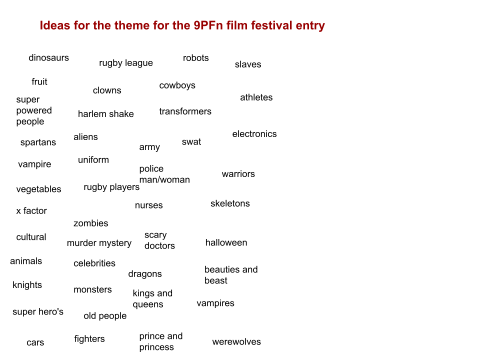


Voting for the Theme

These suggestions have been put into another Google form and sent to the group so they can vote on their top 3 choices.


This has been emailed to them tonight so that there is time for the results to come in and be ready for the script team who are having their frist meeting on Wednesday after school.


The plan for the the script meeting is to do the planning on a Google drawing then to move to a shared Google doc for the team to input into.
It is interesting producing a project this way as I dont actually teach my tutor class and I only see them in the morning and afternoon tutor periods.


26th June

We had the first meeting of the script crew. These are the students who put their name down on the form to choose what they wanted to do.

The winner is...

We kept checking every day on the voting results coming in and Google forms presents it really nicely as a graph for you so you can see straight away what the results are.
Here is a screen shot of the results :-


So Vampires, Zombies and a last minute vote for fruit and veg it is...!!!!


Ideas......

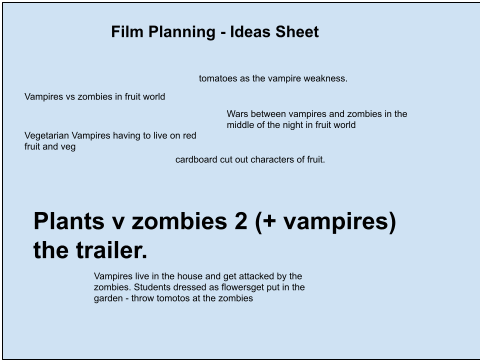
They had the three main ideas to go with so they started a Google drawing to put down any silly idea they could come up with so we could talk about them. We sat around one computer talking with one student doing the typing of everyone's ideas. This drawing has been shared with the script crew so they can add to it in their own time.

The favourite at the moment is a film trailer for Plants vs Zombies the Movie.... we shall see...
The next meeting is Friday so we can start a story board to work on over the weekend.


3rd July

The planning team met to do the scene breakdown plan.
We did this on a Google doc that os shared with the team and we broke it down into the action, who would be in it, what we would need and where we would film it.
This breakdown will help the props team who need to start work next as we now know what we need.