Wednesday, May 28, 2014

Learning to Podcast in Our after School PD Session

Our after school PD sessions kicked off again today and I have decided to do a few weeks of unplanned sessions where people can pop in and cover what they need to.
This proved interesting today when Carol, our Food Technology / Catering and Hospitality teacher came and we ended up doing podcasting.


She wanted an interactive way that students can be involved in the recipe process.
So the original plan is that Carol will make a podcast of the ingredients, using Garage Band, so the students have to listen to the instructions. With it being in podcast from, they can listen as many times as they need to. She will then embed this on her site, via Sound Cloud, where she will combine it with a Google form where the students have to fill in the method.
Carol then plans to move on to the students doing the whole process them selves.

We had a lot of fun today, recording the voice tracks, putting in jingles and adding illustrations of the recipes.

Friday, May 23, 2014

Climbing the SAMR Ladder

We have been involved in an interesting activity at school recently where we have been looking at what we are doing in our teaching practice regarding online learning. Part of that assessment process involved looking at the activities that we are doing and where they fit onto the different levels on the SAMR ladder.
Here is what I thought that I could put on each stage of this ladder. This table is part of the from that the school gave us to fill in. We had to put our input into the last column.


Level
Definition
Example
Evidence (Link)
Substitution
(Enhancement)
Technology acts as direct tool substitute, with no functional change.
Examples may include; digital copy of notes/handbooks.
All of the instructions and resources are stored online rather than on paper.
Everything that I used to give the students on photocopied handouts is now on the site for them to reference.
Augmentation
(Enhancement)
Technology acts as direct tool substitute, with functional improvement.
Examples may include; use of google forms for pre/post tests etc. Use of go animate/glogster/  collaboration using Teacher Dashboard.
Use of gafe products for various collaborative/group activities. These activities have been enhanced by being able to collaborate with each other online and by getting quick teacher feedback.
Modification
(Transformation)
Technology allows for significant task redesign.
Examples may include;
gamification/
animated tasks/use of google maps/video.
Level 1 layout exercise - analysing each others work in a Google Plus community. The students upload their design work to the community and allow others to comment on it. They take the comments of others to structure the analysis of their own work.
Redefinition
(Transformation)
Technology allows for the creation of new tasks, previously inconceivable.
Examples may include; cross curricular/virtual tours/Google+.
Level 1 online course - mooc style - no classroom input at all.
I have made an online module to test the validity of a totally online course so the students access it and complete it in their own time.

This was a really interesting activity to do and it made me really think about the activities that I have designed for the students to work through. I need to get more of the DVC work up into the redefinition area, as this is also a golden opportunity to get the work into the extended abstract of the SOLO progression which will get the students to extend their thinking and get outside of that box. We still need to produce work on paper as those key drawing skills are vital to design work, but how can I get them to produce the other work we get to do in innovative and interesting ways so it inspires them in the course rather than is a chore.


This is a great link from GettingSmart for an interactive SAMR ladder.

Tuesday, May 13, 2014

Students as the Teachers

Over the past couple of years, I have noticed that my knowledge of using all the Googly stuff gets stuck into my head much more as I have to show others how to do it. I have also found that the action of making the how to screen casts, where I have to be really clear about the process, has been really beneficial to me in my own clarity and understanding.
This term, I decided to try this out on my Level 1 class and get them to make a "how to" instruction set about something they had just learned.
We have been learning how to render a few different surfaces, like wood and plastic.


They had a practice through the process of a couple of the techniques, then they had to decide which one they were going to use as their example of a teaching how to.
I made them a quick example to show them how I wanted them to set it out using a Google slide show. This was also a good time to show them the new crop feature in Google slides, which they were delighted with.
I didn't put any written instructions on my example, so we had a class discussion about what possibilities they could put on each slide to explain the process to someone who didn't know what to do. Their growing experience with these class discussions meant that they quickly came up with some good ideas as a class, without too much fuss.

I feel it was a useful exercise for the students. One of their internal assessments is how they render their designs within a project (AS91066 -  Use rendering techniques to communicate the form of design ideas), so they need lots of practice with the techniques. If they can get the steps firmly in their head by teaching someone else, then they can concentrate on improving their techniques through practice.

Saying of the lesson through all this has been :-
Practice makes better...

Here are their how to's....


Monday, May 12, 2014

Blended Learning and the effects on a Secondary Timetable

As part of my blended learning research this year, I am interested to know what kind of effect this type of learning has on the timetable and planning in a secondary school context.
I have interviewed Mr Harris, Deputy Principal at Tamaki College, in charge of timetabling. I sent him the questions a couple of weeks ago so he knew what I was going to ask him.

These are the questions that we covered ( along with a few extras along the way ).

  • What do you see as the main issues with the timetable as it stands at the moment?
  • How do these issues affect the planning  of a whole school timetable?
  • What is your understanding of blended learning?
  • Have you seen blended learning in action at any other school?
  • Were there any timetable considerations with what you have seen?
  • When the wireless in the community is up and running, and nearly all students will therefore have internet access at home,  do you see more of an opportunity for blended learning to have an impact on timetable planning?
  • What do you see as the main stumbling blocks / sticky areas with a blended learning model with regards to timetable planning?
  • There are definitions of types of blended learning here - Link
  • Do any of these models make timetable planning easier? ( bearing in mind, we still have to cater for trades, junior school and intermediates, who need a more traditional model ).
  • I see DVC as blended due the the different types of activities that we have to do, both online and on paper.
  • Do you see all subjects in the school like this or are some more able to be totally digital and others not?
  • How does this affect the planning of a timetable to cater for these differences?
  • This link here is to a totally online Level 1 course that I am trialling this year.
  • Link to Site
  • I am trialing it with a group of Year 10 students.
  • If there were more online course opportunities like this, how do you see this affecting the timetable?
  • What are the positive and negative affects that this could have?
  • Do you ever see a time when the students determine the timetable for themselves, going to see teachers when they need to for specific skills and content and for discussion time during a course where most of the “facts / content” is online?
  • Do you think that this approach is too “mature” for our younger students?
  • How do you see that a secondary timetable is going to have to evolve to keep up with the changes in how content is being taught?


What the main points were :-

  • What, where, when and who ?
  • What is going to be best for the students and the way that they learn?
  • How much change can happen while the end assessment is still as it stands with NCEA and we have to prepare students for that reality?
  • Being prepared for a future where we don't know what it will be like, as things are always changing. Wireless in the community will be a bog step in this change, as our expectations of the students ability to work outside of school hours will be different.
  • Being OPEN to change and being able to adapt and cater for what the students needs.
  • Teachers work at different rates, styles and times so we need to expect and cater for students in the same way.
  • Will students come in for those skill sessions that they need, and have a more flexible timetable at other times? What will that flexible arrangement look like?
  • Yes, he does see a time when students are dictating the timetable, but when that will be is unclear in the present state of things.
  • As more students come through from primary and intermediate having gone through this style of teaching, their ability to cope with a more open time table will improve, so the "maturity" factor will not be relevant any more.
  • Each subject has different requirements, and topics within a subject has too, so a one size fits everything will not be the way to go, but a flexible approach will be necessary.


Here is the recording of the interview ( please excuse the small chat at the start !! The main section starts about 50s in... )

Friday, May 2, 2014

Google for Education

After listening to all the training options available at the GAFE Summit NZ this week, I decided to make a start.
I went through the basic exams yesterday, and have completed the level 1 certificate.
I have now made a start working my way through the first Level 2 set (about Docs and Drive) and am aiming towards the Google Educator exams.
Link to the Google for Eduction site here.
Great resource site from the GAFE Summit here.


Thursday, May 1, 2014

Be More Dog...

This week I have had a great time at the GAFE Summit NZ North Island.
The summit was a two day event this time round, so there was lots of choice of great things to go and listen to.

We kicked off with a keynote from Suan Yeo.
Here are my highlights from his keynote speech :-
  • A lot of the content on the net is repurposed and re-imaged - how can you make the content say what you want it to say.
  • Start with why.
  • Do schools kill creativity.
  • Children are born inquisitive.
  • Sometimes you win, sometimes you learn.
  • Shift from students as consumers to students as creators.
  • The sign up rate for MOOCS is HUGE.
  • MOOC like reading the newspaper.
  • You pick what you want to learn when you want to learn it.
  • Ask questions that can’t be Googled..
  • Flip the teacher - get the students to lead the class for the day.
  • Plan for the last mile not the first
  • Let technology do the hard work.
  • Computational thinking - problem solving - the steps are important not so much the answer.
  • Internet Explorer - the best browser for downloading a better browser ( !!! )
Then the sessions started and it was all on, finding the rooms and settling down to 8 sessions of Googly learning.

Here are my highlights of the two days :-
The sessions were hands on / having a go so my notes are short and bullet point style.

Playlists - Curating YouTube with Jim Sill

This was a great, useful session where I learned lots of really good stuff that I can apply and share.


  • You need an account for a playlist on YouTube.
  • When you subscribe to stuff it teaches google what to recommend.
  • You can click on these to stop them being shown - the three dots - but you can't get rid of recommended ones so use your personal account for the silly stuff, then it won’t show up on your work account for google to recommend from it.
  • Deleting the search history will delete all the things that guide the recommendations too.


Watch on full screen - you loose all the controls.
Large player - pushes all the other on screen stuff out of view - you can still use all the controls.

Safety Mode :-
  • Down the bottom - it says safety mode - gets rid of comments from the screen.
  • Limits recommended videos to a certain type of rating. - links to what you are watching.
  • You can push safety mode out to all chrome books on the control panel.
  • for example - Sesame street video - all the recommendations are of the same TV rating of the show you are watching.


Subscription - you can set it up to email you when new ones are added - but the normal setting will just include it on your feed when you log in.

You can set the video up to play from a certain spot - this changes the url link to accommodate this setting.

Add to - playlist.
You can share playlists across users / sign ins
Add to playlist or start a new playlist.
  • Public - anyone can find it
  • Unlisted - need the link can’t be searched for
  • Private - is private


There is a button that says remove duplicates - useful
When you play one from a playlist - it will continue on and play the rest in a loop.
You can drag and drop the order that they are in.
The share option on the playlist shares the whole playlist, not just one of the videos.

Embed code - embeds the whole playlist.

It does not show recommended videos at the end , it automatically goes onto the next one then shows a curly arrow to refresh.

  • Click on enable privacy enhanced mode to embed the playlist on a site.

Hover over the vid in the playlist, for lots more options.
  • Can edit start and end times - trim up the front and back of video - doesn’t effect the vid on the web, just what appears in your playlist.
  • Can add notes / instructions
  • On the upload button you can record straight from the web cam.
  • You can record instructions in the playlist and mix it into required trimmed videos.


Get students to snip and edit up playlists to show their understanding of a topic.

  • Use the filter drop down to guide searching.
  • Use a comma and add playlist to a search - you will only get playlists on that topic.


How to Make your Google Site not look like a Google Site with Ken Shelton


The main starting points are :-

  • navigational structure
  • page layout
  • look and feel - colour, typeface etc..


Get to your content in no more than 2 clicks.
  • Why? get to important info quickly.
  • The more clicks the faster the user experience declines.


Web pages are set up in tables.
This creates a frame for the content - you usually don’t see this frame.

1200 px is a fairly good standard browser size for the width of your site.

Have the tabs as category titles so this makes it more obvious there are drop downs under them. People will then find it natural to go to the drop downs to use them.

  • Layout - Keep it simple, keep it clean.
  • Page layout based on the content.


What colour is your personality?
Colour - emotion, temperature, symbolise.

Create an account in colour lovers to save your colour schemes in.

Take photos of products that have colours that inspire… use photoshop or pixlr to get the hex codes and create a colour palette.

Serif / san serif
serif - print
san serif - web  as there is more space

Do not use Comic san!!!


Tab titles - use a serif font as there is less space


Google Art Project with Jim Sill

I didn't take many notes here at all as I was too busy playing, but these links are well worth a visit as the Google Art Project is AWESOME. The 1giga pixel photographs are AMAZING, you can get SO close to the paintings, you can see the canvas structure and individual brush strokes.
Being able to take tours and walks around galleries all round the world is an opportunity not to be missed. You can loose a LOT of time browsing though this project.


Collaboration - Concept, Power and Magic with Julie Lindsay


ISTE.org


You can’t expect students to collaborate if teachers don't model it

  • Synchronous - in real time
  • Asynchronous - out of time, the glue that holds collaboration together across all sorts of groups.


Cooperation + Contribution = Collaboration

  • Contribute is the one that sometimes gets lost in the mix
  • + co creation - what are you going to do together?


It is not always about you and your work, it is about the final thing that you are working on together.

voicethread.com

How are we supporting collaboration online?

Potential for miscommunication

  • Can you use tools other than google docs for collaborative learning, to build on the comfort level issues of working only through online methods - skype?, chat?, forum?


poll everywhere - free account takes first 40 answers


Google Docs - The Ultimate Workflow and Applications Suite with Ken Shelton


What can you do in 2 steps that used to take 7?
Have drive in grid view and colour the folders for instant recognition.
Thumbnails of files.

Autosave is every three to seven seconds

Develop an efficient naming protocol for documents.
Name, class, title - these become searchable terms.

Put a header on the doc and  use #name, class, title - this is then searchable too

Create searchable identifiers

My Session doc - contains lots of great pointers for using the research tool in Google docs.


I have learned LOADS of great stuff over the 2 days and the plan now is to start breaking it down and working out how I can use it and how I can share it with others.

Lots to do !!!

But, we all need to :-

BE MORE DOG!!

Embrace the experience!
Grab the frisbee!!


Thursday, April 17, 2014

The 10 Commandments of Typography

The 10 Commandments of Typography
A great graphic found on Visual.ly.
The original can be found here from DesignMantic.


The 10 Commandments of Typography


Wednesday, April 16, 2014

Analysing Design Applications

I took the second day today of the 8 Manaiakalani research days that I can have this year.
I decided to use it to try and assess and analyse some online design apps and I decided to get a small group of students to help me to do this.

I sent them all this document with a selection on online programmes and chrome apps for them to test and try out. They had to try and design something with these tools and see how easy they were to use.
Link to document

Between them they had Asus netbooks, Samsung chrome books, and we used PC desktops and Apple desktops.
They had to see if the apps we were looking at could be used on a variety of devices to make sure they were useable for lots of different situations.
Here is a link to the students' analysis sheets that they filled in as they went.

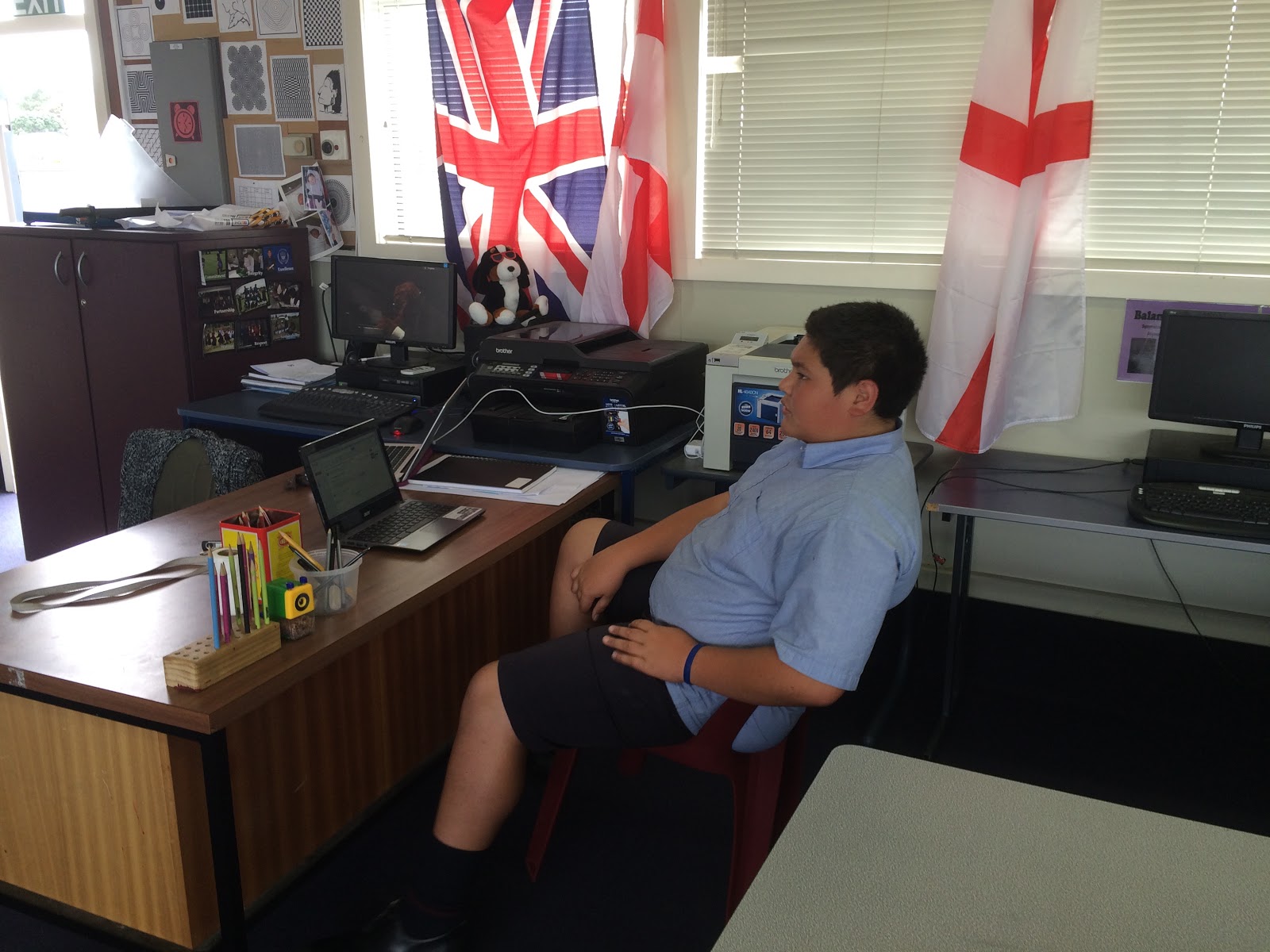
Here is Fiu, being comfortable on a beanbag set up on 3 chairs, testing out the same app on a desktop and a netbook.


In the afternoon, we decided to try out some iPad apps.
Here are the ones that were tested and tried out :-
Homestyle 3D

A big hit was the Tayasui sketches app as it was easy to draw with and very realistic looking when you are sketching.
Doodle Buddy was popular but maybe not detailed enough for the higher levels in design work.
Autodesk always provides good design tools and it is good to see them available in an iPad format.

Overall, a very productive day with some good outcomes and some disappointments. A key question came through. How can a really good app like 3D Design Something, which we all rated as really good and easy to use and is totally online, not work on the netbook? Frustrating.
The iPad app test has made me want to use the iPads in DVC so I need to go shopping for some stylus pens.


Mino and Jarna working hard
Nathaniel trialling apps and giving feedback

Pizza for lunch. Have to feed the troops...


Sunday, April 13, 2014

Quality Feedback to Aid Planning...

While designing the online course trial module, it was definitely a different planning experience. I tried hard to think of all possibilities so that I could make resources to cover every thing.
The trial module went live today and one of my students has made a start on it.
I have been getting some quality feedback from him already, via Google Plus, which has helped me to improve the experience for the others when they start.

Saia had uploaded his architect photos to a Google Plus album and I gave him some feedback that a wider range was needed and to make the album public, as he had shared it privately. I need all of this online work to be public so it can be moderated.

When Saia  acted on this feedback, I noticed that he had made a new folder rather than change the one that he had already made.


When he started his new folder, I asked if more help videos on the online task were needed.
So I made a couple more to cover  changing the sharing settings of an album you already have and how to add more photos to an album you have already started.
Saia has already been adding more photos to his album since so this is going to be helpful to the others in the test group when they get that far.
It is hard to think of everything that might crop up and it is really useful to have students who are willing to give it a go first and not be shy to give some helpful feedback.


It is good to see that he is using the tracking sheet system. It makes it really easy to see an overview of where he is up to at any given time.


Friday, April 11, 2014

Planning to be Not There......

I took the first of my 8 support days today and I focussed my time on planning the online Level 1 module.
It was a very productive day, with making screencasts and instruction sets for all the tasks that make up the project.
It is definitely a different thought process to plan a course where the students do not get me to show and tell them what to do in person. I have tried to break it down into the chunks that I think make it clear to understand and I will see how effective that is when my trial set of Year 10 students work their way through it. Nine members of my Year 10 tutor class have agreed to trial it for me when it is ready. The payoff for them is that they will get 4 Level 1 credits out of it while they are still in year 10.
I went into work today even though I was off timetable to do this as I knew that I would get more work done there than at home, but the tricky part was finding somewhere quiet enough to make my screencasts. I made the decision not to make each screen cast too long ( none of them are over 4 minutes), so if there was more to cover, I split that section up into two parts. I did this so the information is in bite size pieces that can be easily covered in a short time. The students are doing all of this in their own time, so I did not want to make each section in each task a long painful process that would put them off going back.
The key points from me doing a MOOC with Future Learn that I wanted to include are :-
  • Small chunks  of information in the form of video
  • Visual tracking of progress
  • Community / forum support

For the tracking, I have used a Google spreadsheet that the students will change the colour of each task as they go along. They will embed this on the front page of their Google site so it is the first thing that they see when they go back to their work.
I have set up a Google plus community for the forum support element that is needed in the online course, as I have used this with my classes already this year and it is proving very effective to support their writing.
Of the 10 tasks in the project, I have completed 7 of them so far and I really need to finish the others over the weekend as I want the students to have access to this next week so they can make a start over the 2 week holiday if they want to.

I am really looking forward to them making a start and seeing how it goes.
I have warned them that I will be sending them regular Google forms to get feedback from them about how they are finding the process.


Update - Sunday 13th April
I completed the tasks today, I have had it checked over by a couple of fresh pairs of eyes and I have sent the link to my 9 guinea pigs.
I have to be patient now.

A bit later on Sunday....

I have a had a bite. I have been getting excited watching one of my students enrol, start his folders and site and share things with me, then watch him make his site ready to go, use his tracking sheet and decide which architect he is going to research. 
I need to stop stalking.


Sunday, April 6, 2014

My Own Learning and Planning by Doing......

When I plan a project for DVC, I have always  drawn and made all the things that I am expecting the students to do. This serves multiple purposes for me. It helps me see the steps that need to be taken to complete the process, it lets me see where the bumps in the road might be, it helps me plan materials and equipment needs at different steps in the process and it gives me examples to show the students at the start of the project. I find that it always helps the students to see me actually do the tasks in front of them too. It lets them see the skills and processes in action, and it lets them see that I can do it and not just talk about it.
As an aside, I tend to do my drawings etc, in the staff room where I can join in chat while I work rather than sit by myself in my own classroom (I really don't like quiet while I work). I am always surprised by the number of staff members who walk past what I am doing and say things like "it must be nice to have the time to sit and do things like that". Seriously! So are they telling me that they do no planning and examples for their students? A colleague who knows of my frustration about this happening has taken to walking past and saying "colouring in again?" just to wind me up !! Anyway, back on to the topic....
With my research into blended learning, I have decided to follow the same process that helps me to understand what the students have to do and actually try it myself.
I have signed up for Future Learn. This is a MOOC mostly owned by the Open University, but they are partnered by a large list of Universities. Link here to Wikipedia with a brief explanation.
Here is an article in the Guardian about how this is changing the way people learn.
It was really easy to sign up for, an email and a password to set it up was all that was needed and I was in browsing their courses.
I have signed up for one called "The Mind is Flat" from the University of Warwick. It is a 6 week course and I am starting late as they have already been going for nearly two weeks. I didn't mind this as I thought it would give me a good insight into starting late, working at my own pace, catching up etc.

The Process

I signed up yesterday and I am in the process of working through the work from week 1.
When you log in, you see a screen that lists the courses you are signed up to.
I only have one here are this is all I am signed up for at the moment. It gives you a coloured graphic of where the course is up to and where you are up to on it (the blue parts are the bits I have done so far).


When you click onto your course, it is broken down into steps that you work through in each week. You can click back into weeks to look at what you have already gone through and to catch up, and you can click forward to see what is coming up in later weeks. As you work though each step, the colour changes from pink to blue so you can visually see where you are up to in the steps. These steps are a mix of discussions, articles and videos.


The videos that I have been watching so far are clear to hear and understand, with the lecturer talking to you against a plain background so there is no distractions. It lets you know how long the videos are before you play them so you can plan your time accordingly. Underneath the video is a download link so you can get a pdf of a transcript of what was said in the video. There is also an area to add comments as you are encouraged to discuss what you have seen in the video. To be honest, I found this quite intimidating as there was over 500 comments on some of the videos and as usual on the internet, it becomes an excuse for some people to show off about what they have read, disagree with the video that they have seen and generally be on their own box.
Once you are happy that you have completed a section, you click the pink "mark as complete" button and this then changes your progress colour to blue so you can see where you are up to when you log in next.


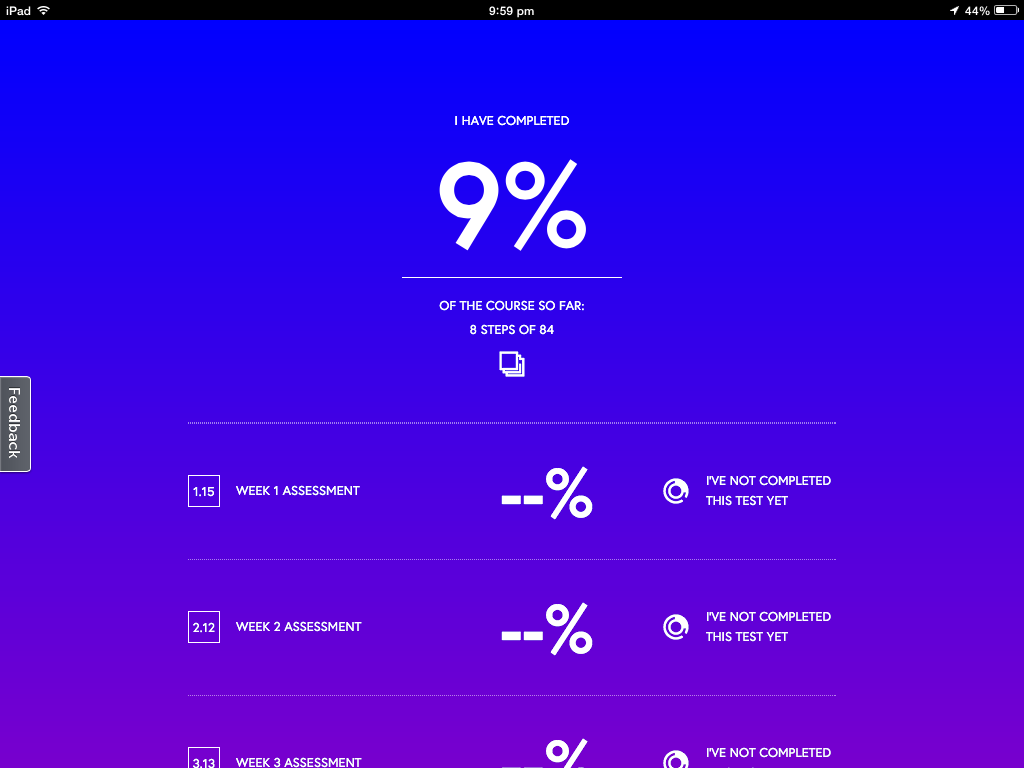
You can keep a check on your progress on this screen, where it tells you how much you have completed and any marks for tests that you have done. 
I have been going through all the steps on my iPad up to now, but you can do them on any device as you just have to log into the site on a browser. 


So what can I take away from this?
  • Progress on the course being visual and easy to keep up with.
  • Each week being broken down into small steps.
  • The videos are clear and easy to understand.
  • The videos are not too long each time so are easier to take in the whole thing.
  • The timing of the videos being stated before you click play so you know how much time to give them.
  • The transcripts of the videos being available to read afterwards. This is good with different accents, understanding etc might make videos alone not very accessible.
  • The chat / discussion / forum area of each section is a good idea but for younger students this needs to be more structured than just an open area. A particular focus for discussion needs to be put in place but I like the idea of the students on the course helping each other.
I have not got to the part where there are activities and tests yet.

Questions...

With the timetabling constraints within a secondary school, there are always students who would like to take my course but the timetable clashes with another subject.
Would I be able to set up an entirely online course for these students?
I feel that I would have to meet with them still to give face to face support on things they were unsure about, and it would have to be after school. How often would be enough to support an online course?
Would this give students the opportunity to gain more credits without it taking time and options off them during the school day? 
Would I be able to explain and support the skills needed in DVC enough for the students to produce work of a suitable standard?
How would students submit drawn work? 
Would the online students have to come in to the DVC room to use equipment? When would this happen?

I am fascinated by all these questions and I think my next step next week is to talk to particular students who I know did not take my course again this year due to timetable constraints, and see what they think.